install.packages(c("quarto", "knitr", "dplyr", "mice"), dependencies = TRUE)Installation
System requirements
You will either need a computer for which you have full write access and administrator rights, or run the code via an online server.
We will explore programming and compiling in this tutorial, so you will need full access to your machine. Some corporate computers (and university computers) restrict the access of their users. I therefore advise you to use a personal computer for this course, if possible. Or to access R online via Posit Cloud (see Section 2 below).
Local version of R
If you are already using a local version of R, you can skip ahead to Section 1.2.
Fresh installation
1. Install R
You can obtain a copy of R here. We won’t use R directly in this course. Rather, we’ll call R through RStudio. Therefore, you also need to install RStudio.
2. Install RStudio Desktop
RStudio is an Integrated Development Environment (IDE) for R. You can download RStudio as stand-alone software here. You want the free, open-source RStudio Desktop version.
3. Start RStudio, and install packages
Open RStudio, and copy-paste the following line of code into the console pane to install the packages you will need for the exercises.
- If nothing happens after you paste the code, try hitting the “Enter/Return” key.
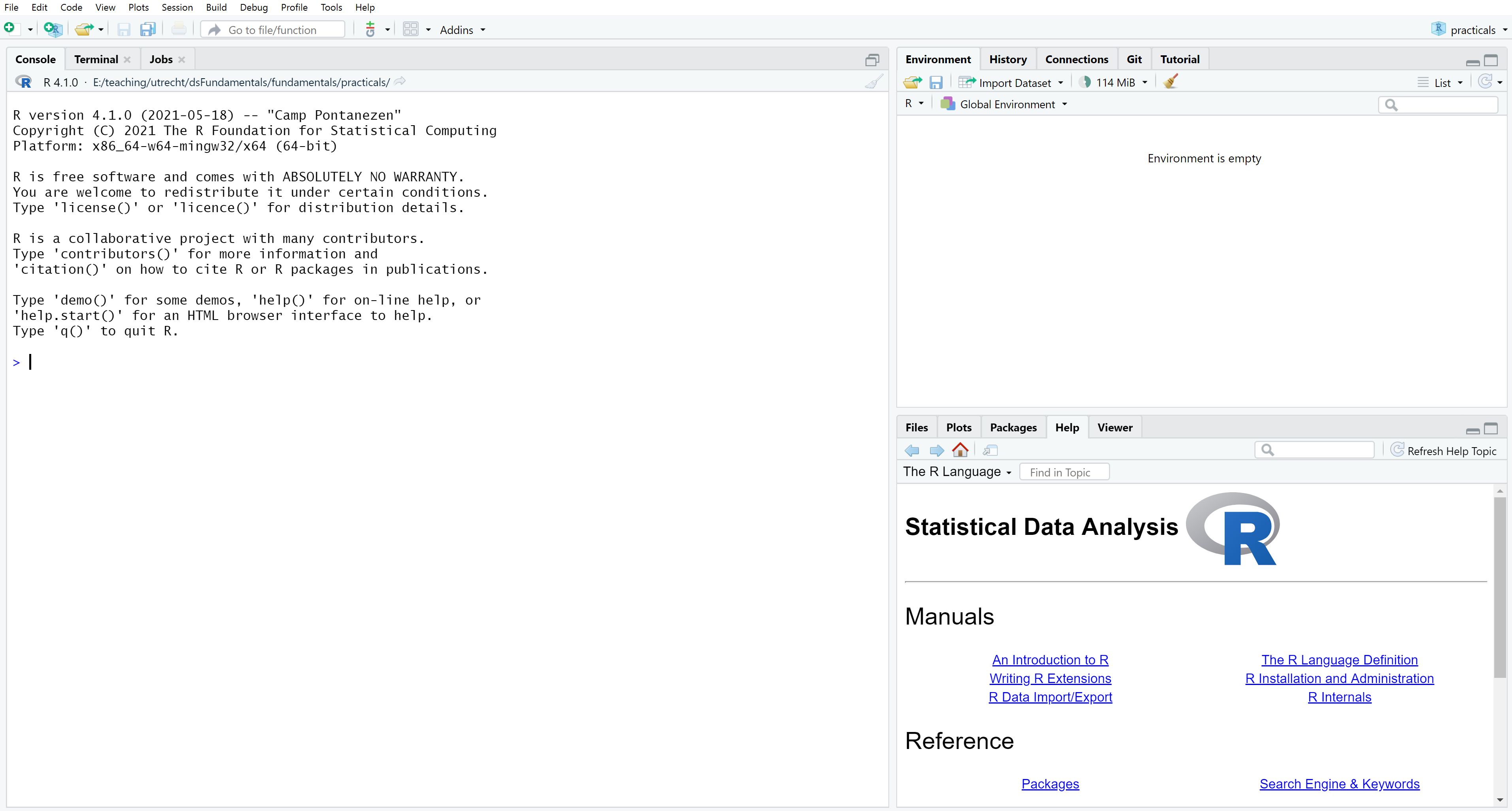
If you are not sure where to paste the code, use the following figure to identify the console.
- The console pane occupies the left half of the RStudio window shown in this image.
If you are asked the following:
Do you want to install from sources the package which needs
compilation? (Yes/no/cancel)
Type Yes in the console, and press the “Enter/Return” key (or click the corresponding button if the question presents as a dialog box).
Existing installation
1. Check R version (you will need version 4.1 or higher)
R.version$version.string[1] "R version 4.5.0 (2025-04-11)"2. Check installation of R packages
You can verify whether all packages are installed correctly by running:
all(c("quarto", "knitr", "dplyr", "mice") %in% rownames(installed.packages()))[1] TRUEMissing packages can be installed as follows:
install.packages(c("quarto", "knitr", "dplyr", "mice"))Online version of R
1. Choose an online server to run R
If the suggested steps fail or you have insufficient rights on your machine, you can use the following web-based solutions.
- Open a free account on posit.cloud.
- You can run your own cloud-based RStudio environment there.
- If you are a Utrecht University student, you can use Utrecht University’s MyWorkPlace.
- You will have access to R and RStudio there. When you start a new MyWorkPlace session, you may need to (re)install packages.
Naturally, you will need internet access to use these services.
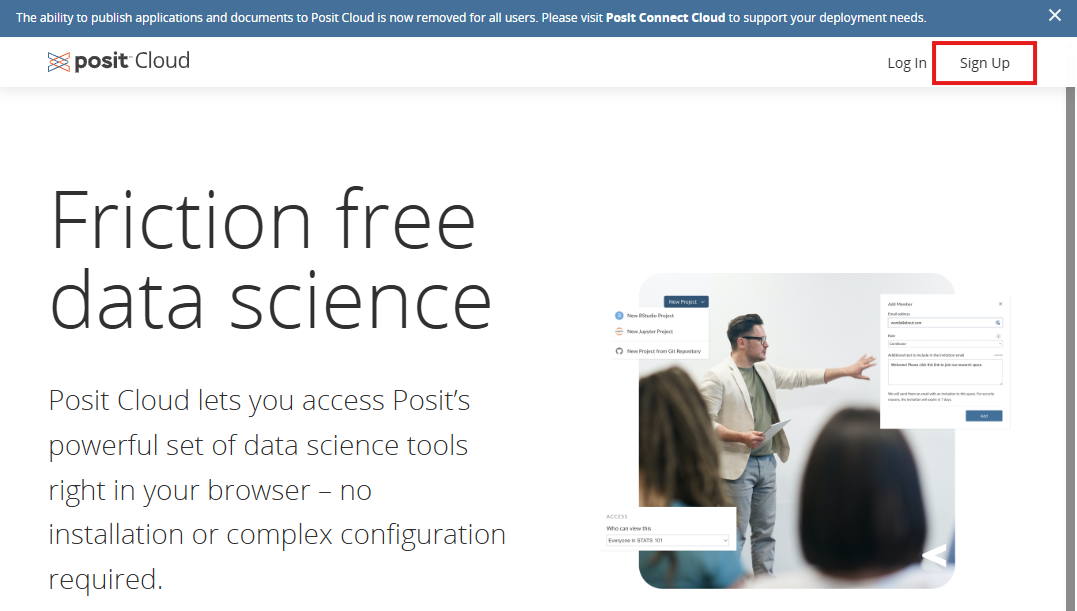
1. Go to https://posit.cloud/ and click on “Sign Up” in the top-right corner.
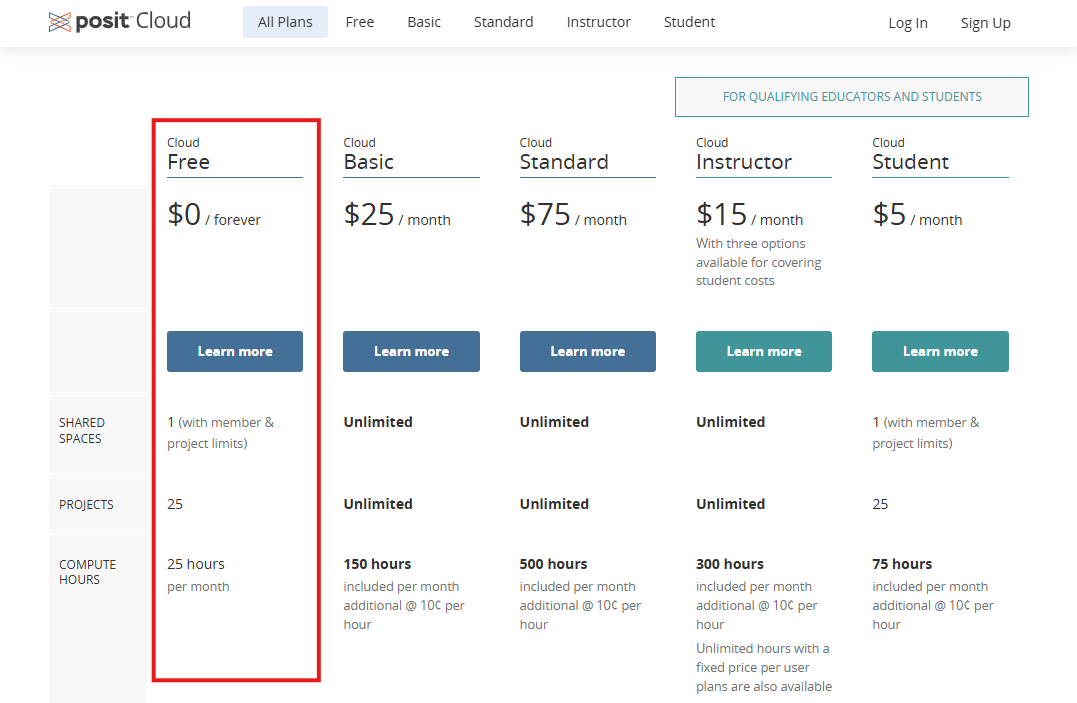
2. Select “Cloud free” by clicking “Learn more” and sign up.
3. Go to https://docs.posit.co/cloud/get_started/ and follow the instructions up to and including “Create a Project”
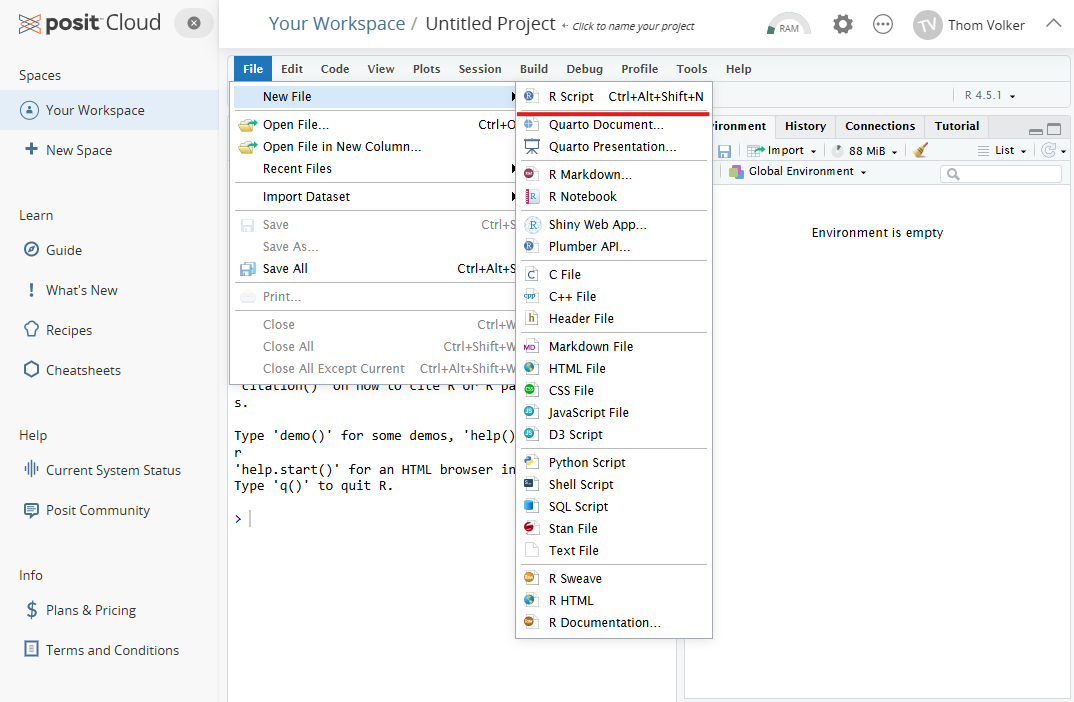
4. Open a fresh R-file: “File –> New file –> R script”
End of Exercise 0
—
Copyright Hanne Oberman, 2025 - CC BY-NC-SA 4.0
Materials developed by Amices team - Methodology & Statistics - Utrecht University